

Photo Location AKA Geotagging
Enabling photo location data (geotagging) on a smartphone requires two main steps: turning on the device’s general Location services and ensuring the Camera app has permission to attach location metadata.
1.Option A: Setting up an Android Phone:
- Turn on System Location: Swipe down from the top of the screen to reveal the Quick Settings panel and tap Location (or go to Settings > Location) and switch it On.
- Enable Location in Camera: Open the Camera app, tap the Settings icon (gear symbol), and turn on Save location or Location tags.
- Set App Permissions: If prompted, choose “While using the app” when asked for location access.
2.Option B: Setting up an iPhone:iOS setup.
- Turn on Location Services: Go to Settings > Privacy & Security > Location Services, and switch it On.
- Grant Camera Access: Scroll down to Camera, tap it, and select “While Using the App”.
- Enable Precise Location: Ensure the Precise Location toggle is turned On so exact coordinates are recorded.
3.Verification:Testing.
To verify if it was successful, take a test photo, open the photo in the phone’s gallery, and swipe up on the image. You should see a map preview showing where the photo was taken.
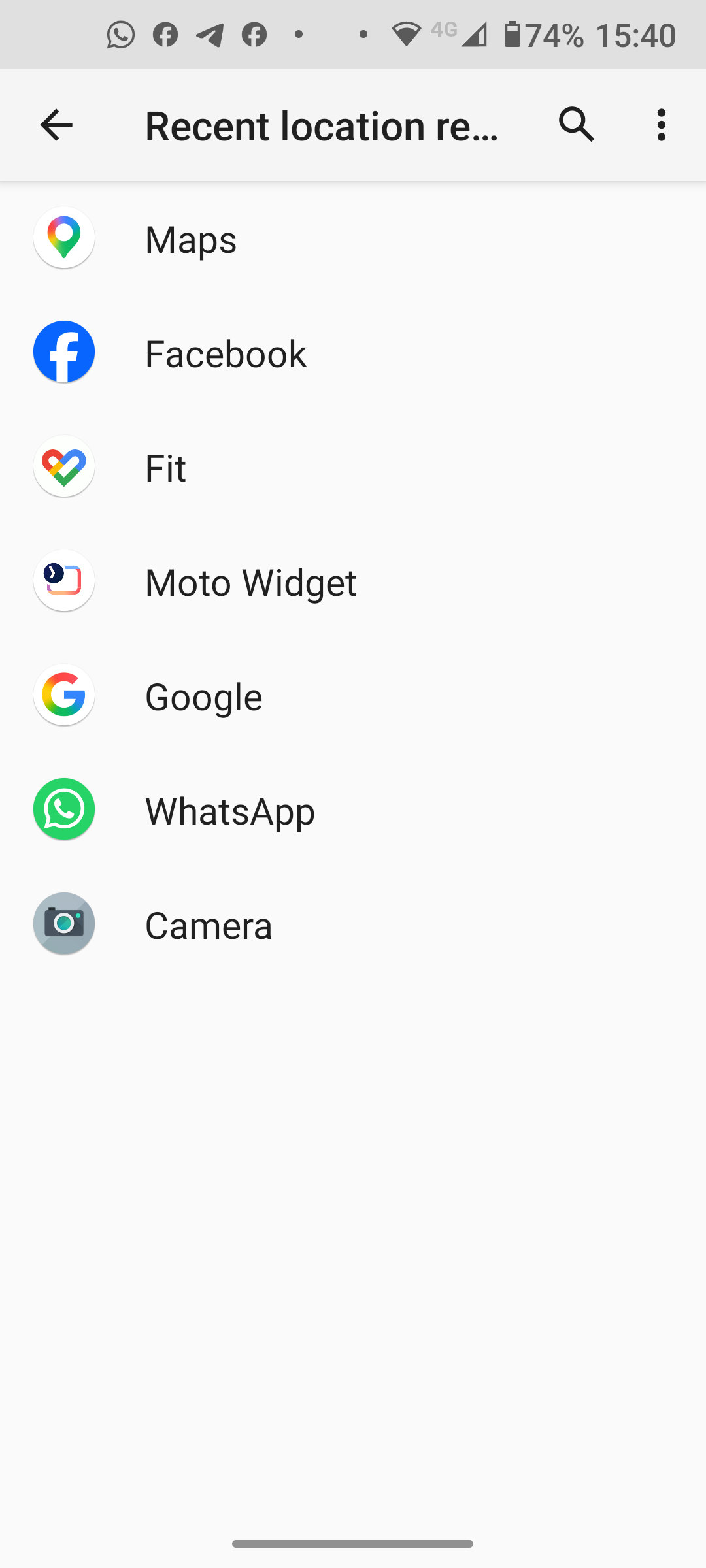
To enable location-based photos (geotagging) on Android, you only need to manage two specific settings:
1. Main System Location
- Go to Settings > Location and toggle it On.
2. Camera App Permission
- Open the Camera app, open its Settings (gear icon), and turn on Save location or Location tags.
- If prompted by Android, choose “While using the app” and select Precise Location.
- Maps is Unnecessary: Google Maps permission is completely separate and not involved in taking or tagging photos.
- Testing: Take a quick test photo, open it in the Gallery/Photos app, and swipe up. If successful, the address or map location will appear under the image details.
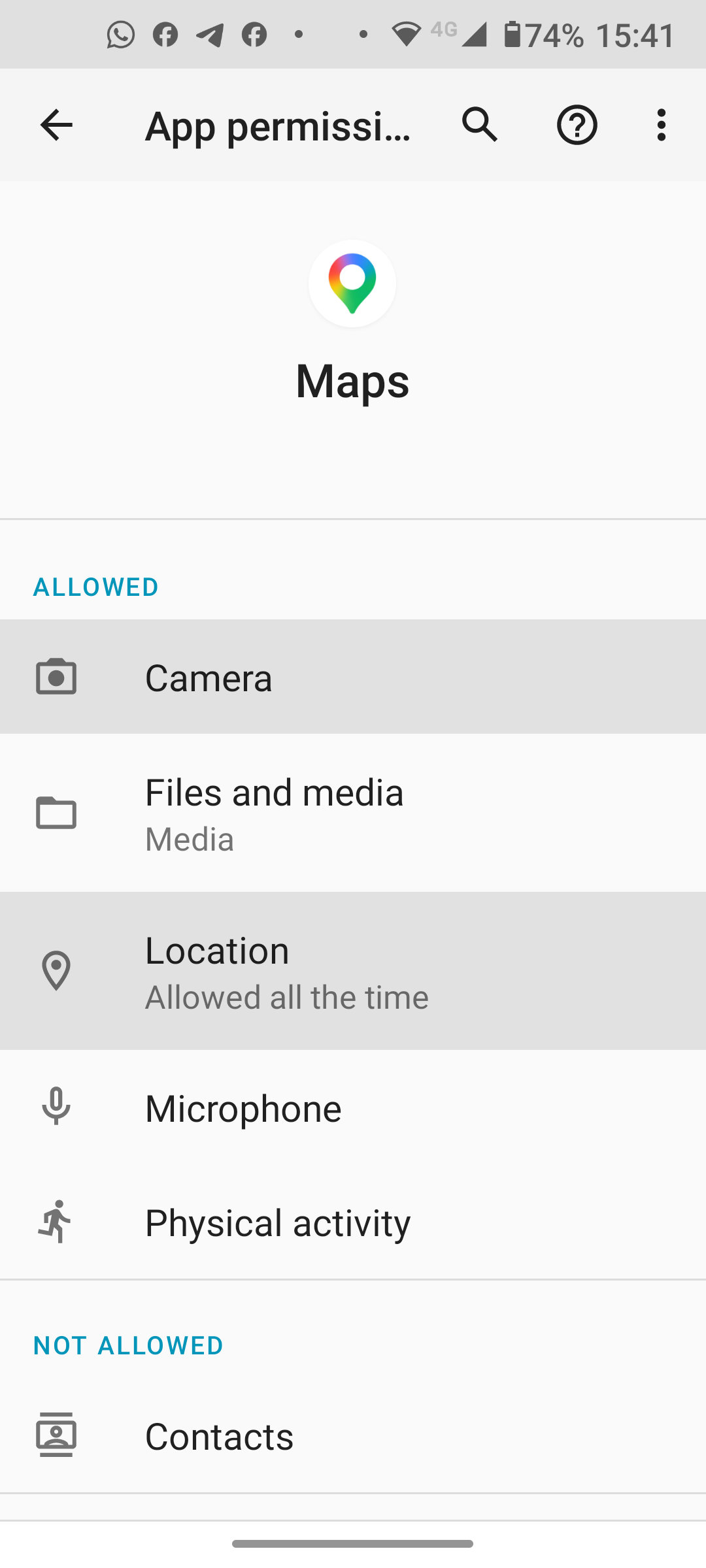
Iphone Location Settings Enable
For an iPhone, you do not need Apple Maps enabled. You only need to switch on main location services and grant permission to the Camera app.
Step-by-Step iPhone Setup
- Turn on Location Services
- Open Settings > Privacy & Security > Location Services.
- Toggle Location Services to On (green).
- Set Camera Permissions
- On that same screen, scroll down and tap Camera.
- Select While Using the App.
- Ensure Precise Location is toggled On.
- Verify the Setup
- Take a test snap with the Camera app.
- Open the photo in the Photos app and swipe up.
- A small map preview with the location pin should appear under the image.
Summary
Apple Maps, Google Maps, or navigation tools play no role in geotagging photos. Only the system-level location switch and the Camera app permission need to be active.
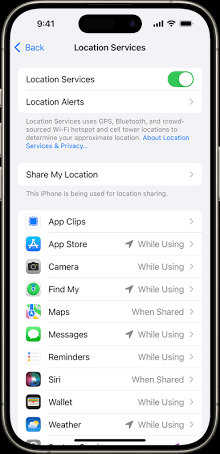
iPhone Location Services permissions menu. Source: Apple Support


